Verge · corner controls for AndroidYour cornersare controls.
Swipe in from a corner and a ruler wraps around your screen’s rounded edge. Slide to set brightness, volume, a timer or an app, then let go. You never leave what you’re doing.
Free · Android 8.0 or newer · In beta. Already a tester? Open it on Google Play
Drag the phone’s edge, or use the arrow keys.Drag along the phone’s right edge.
Yours
Four corners.Your rules.
Each corner gets one job. Choose what it does, where it sits, how long it is and how far from the edge, or switch it off. These are the defaults.
Top left
Brightness
Slide to set the screen's brightness. Keep going below 0 for extra dim.
Bottom left
Quick tools
Flashlight, Do Not Disturb, sound mode, media keys and more.
Middle left free for Back
Top right
Media volume
Volume under your thumb, with a flick for big jumps.
Bottom right
App launcher
Slide to an app, lift to open it. From inside any other app.
Actions
Nine thingsa corner can do.
Brightness
Slide to change screen brightness, below 0 for extra dim
Media volume
Slide to change media volume
App launcher
Slide to an app, lift to open it
Quick tools
Slide to a tool, lift to use it
Ring volume
Slide to change ringtone volume
Alarm volume
Slide to change alarm volume
Notification volume
Slide to change notification volume
Timer
Slide to a length, lift to start it in your clock app
Screen timeout
Slide to how long the screen stays on, lift to set it
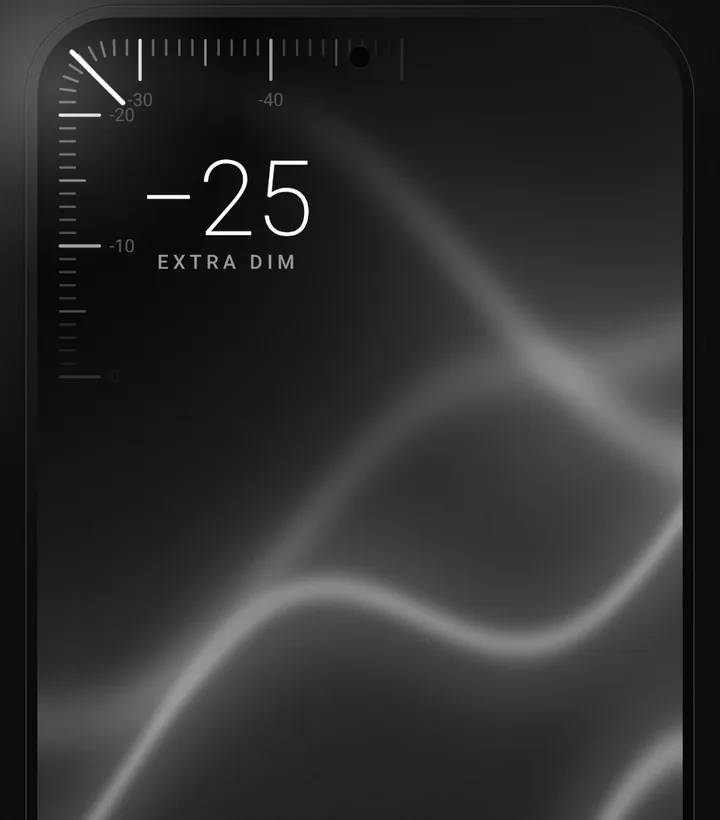
Extra dim
Darker thandark.
Keep sliding past zero and the screen goes darker than your phone's lowest brightness. Made for reading in bed. Slide back above zero and it's gone.
App launcher
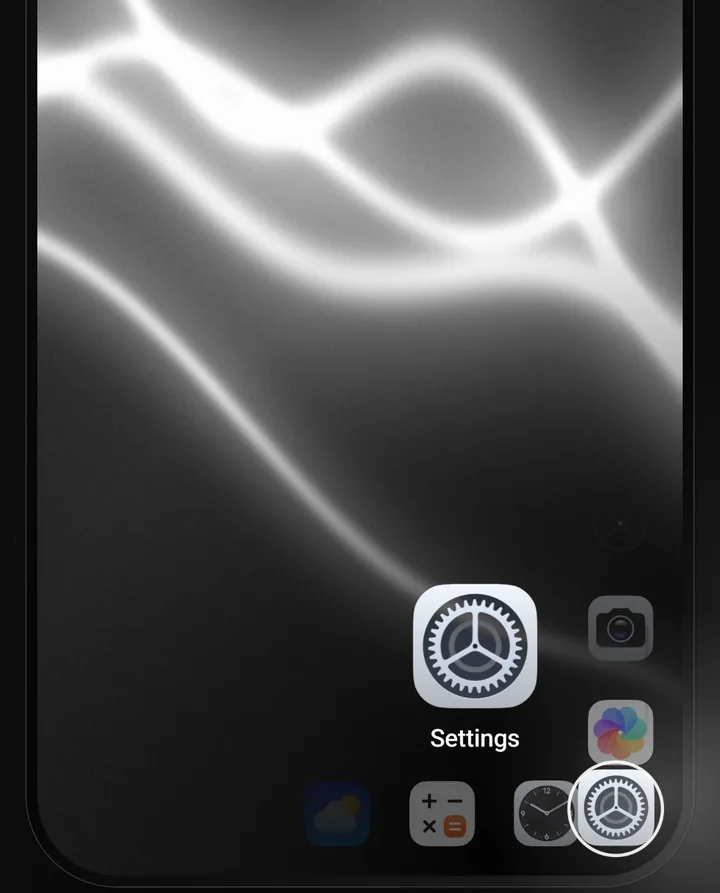
Any app.One swipe.
Choose the apps for a corner and their order. Slide until the one you want sits in the ring, then lift your finger. Lift on the ✕ to change your mind.
Quick tools
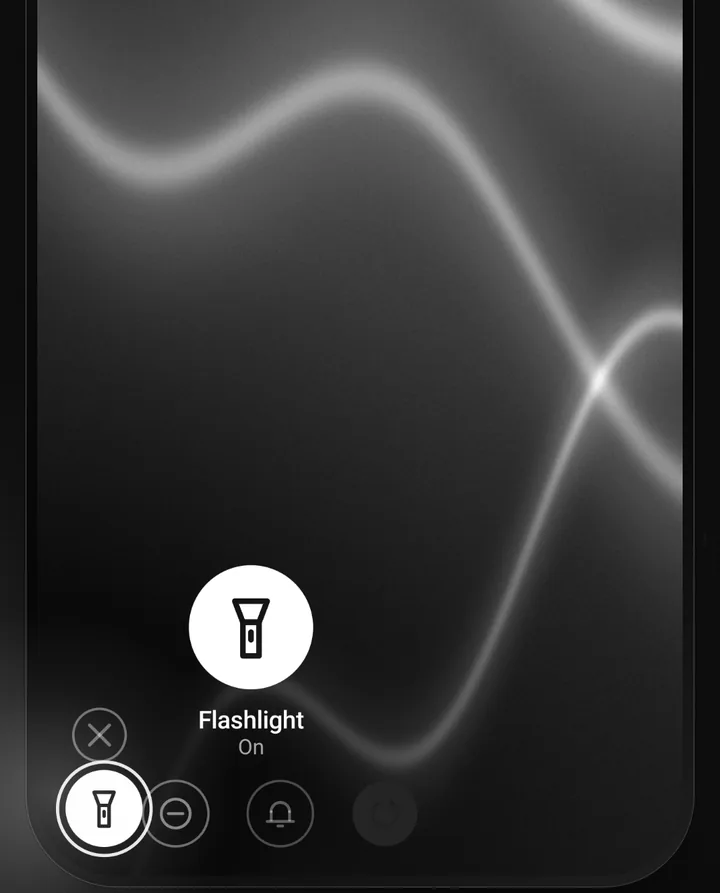
Flashlightin a flick.
Slide to a tool and lift to use it. Tools that are on show filled in. A corner can also run one tool on a tap, and open its ruler on a swipe.
Timer
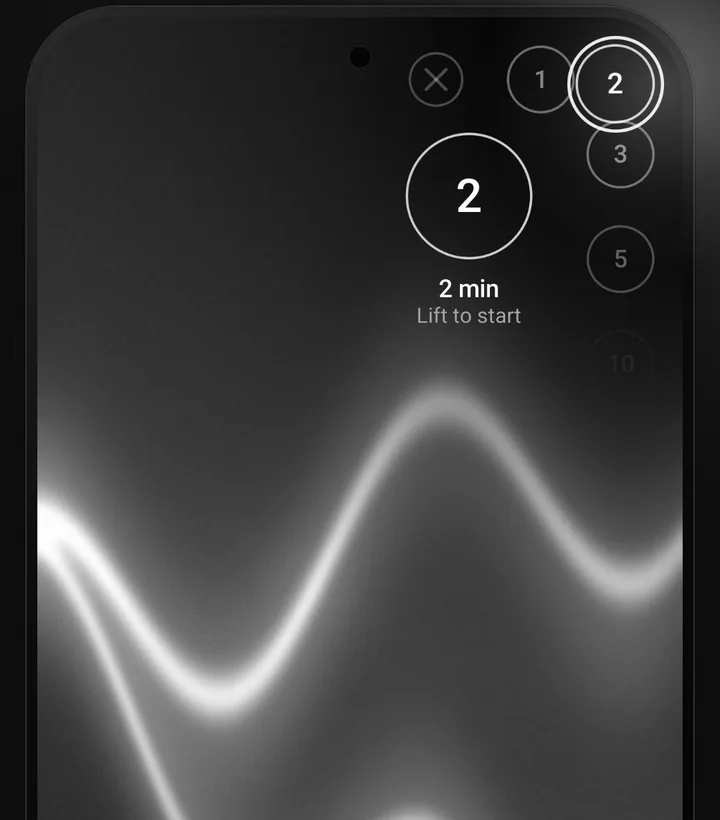
Timers intwo seconds.
Slide to a length from one minute to two hours and lift. Verge hands it to your clock app, so the alarm rings the way it always does.
Unedited
A real phone.No mock-ups.
A screen recording straight from a phone running Verge, over everyday apps. Nothing staged, nothing rendered: what you see is what the app does.
Quick tools
Eleven tools.Honest about each.
Most tools switch right there under your finger. Android lets only system apps toggle Wi-Fi, Bluetooth and airplane mode, so those open the system panel, and the tool tells you so.
Flashlight
Turns on or off
Do Not Disturb
Turns on or off
Sound mode
Ring → Vibrate → Silent
Auto-rotate
Turns on or off
Play / Pause
Plays or pauses what's playing
Next track
Skips to the next track
Previous track
Goes back a track
Stay awake
Keeps the screen on until you turn it off
Wi-Fi
Opens the Wi-Fi panel
Bluetooth
Opens Bluetooth settings
Airplane mode
Opens the setting
switches in place opens the system panel
Light by design
There when youreach for it.
Back still works
The middle of each side stays free for the system Back gesture. Verge only lives near the corners.
Invisible until you need it
The triggers are thin strips you can't see. Turn on corner hints and a hairline shows where they sit.
True black
The ruler and its gradient are pure black, so on an OLED screen they cost next to nothing.
A tick for every step
A light haptic tick at each whole number, so you can set a value without looking. Or turn it off.
Pause anytime
From the notification or a Quick Settings tile. Corners can rest in landscape, for games and videos.
Always there
Verge comes back by itself after your phone restarts or the app updates. Nothing to remember.
Private by design
It never seesyour screen.
Verge draws a ruler and changes a setting. It can’t read, record or capture what’s on your display, and your settings stay in the app’s private storage until you uninstall it.
No internet
Verge doesn't even ask for internet access. Nothing can leave your phone.
No ads
Not now, not later.
No account
Install, allow, swipe. That's it.
No analytics
No trackers, no crash reporters, no third-party SDKs.
Ten languages
Speaks yourlanguage.
Verge follows your phone’s language, ruler and notification included. Prefer another one? Pick it in Settings, no restart needed.
FAQ
Goodto know.
Why doesn't Verge appear over some apps?
Android hides every overlay over permission prompts, some Settings pages, the lock screen, and apps such as banking apps that block overlays for security. Verge can't appear there, by design, and it never tries to get around it.
A corner doesn't open. What can I do?
Some phones put their own Back gesture or sidebar on top of the screen edge. Open Verge, go to Calibrate corners and swipe each corner once: if the phone takes the swipe, Verge moves that corner a little further in and you try again. You can also move and resize any corner by hand.
Why do Wi-Fi, Bluetooth and airplane mode open a panel?
Android lets only system apps switch those directly. Verge opens the matching system panel instead, and says so on the tool, so nothing pretends to toggle when it can't.
Does it drain the battery?
No. While it waits for a touch, Verge does no work at all: the corners are tiny transparent windows. It asks to be exempt from battery optimisation only so aggressive phone makers don't kill it.
Why does it need these permissions?
Display over other apps draws the corners and the ruler. Modify system settings changes brightness, screen timeout and auto-rotate. Do Not Disturb access is optional and only for the DND and silent tools. Verge walks you through each one and says what it doesn't do.
Which phones does it work on?
Any phone on Android 8.0 or newer, with gesture navigation or buttons. The ruler follows your screen's own corner radius, so it hugs the curve of your display.
Your cornersare waiting.
Free · Android 8.0 or newer · In beta. Already a tester? Open it on Google Play